
This is the hardest version of the 12 testers problem. Almost nobody you can reach owns an Android TV, and if your app is leanback-only it will not even install on their phone to begin with. There is a way through, and it is the architecture Google recommends anyway.
Quick answer
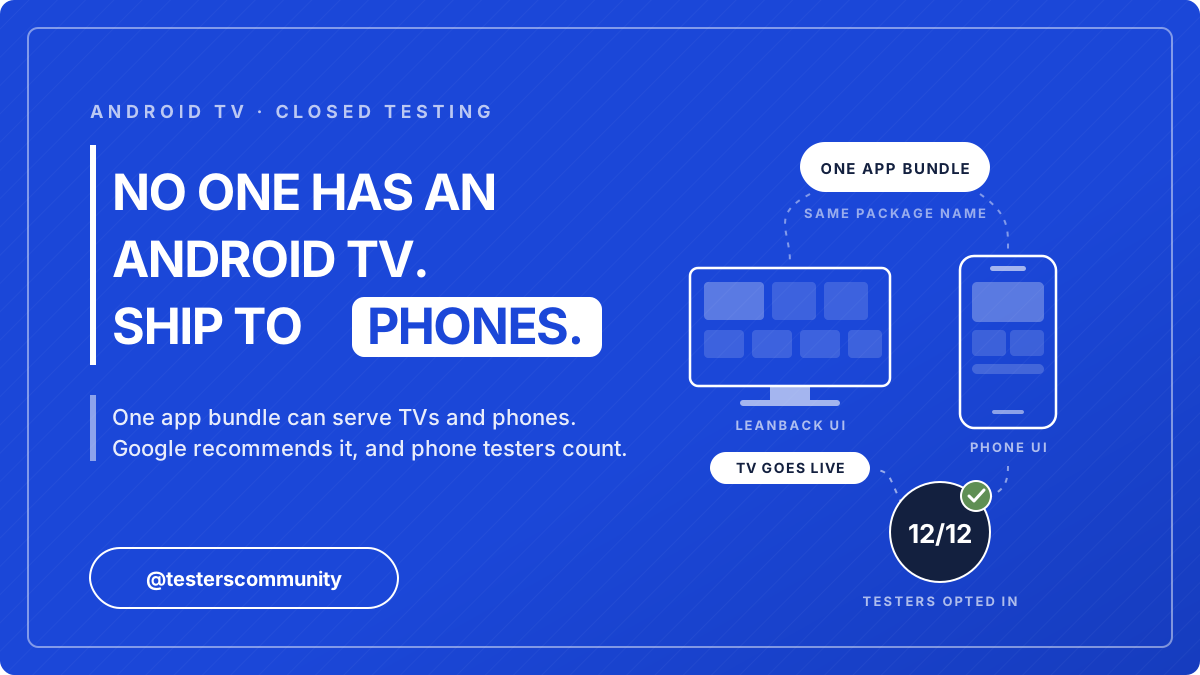
To find testers for an Android TV app, stop looking for people who own televisions and make
the same app installable on phones. Set android.software.leanback to
required="false", add four or five real phone screens alongside the leanback ones, and
keep the same package name. Google Play then offers that single bundle to both form factors, phone
testers can join your closed testing track, and they count, because the 12 testers requirement is
measured per app and not per device type. Google's own TV documentation recommends a single app that
supports both mobile and TV, so this is the supported way to build, not a loophole. Jump to
the manifest change or to
getting the 12 testers.
Why Android TV Testers Barely Exist
Let us be honest about the size of this problem before solving it, because the usual advice does not survive contact with an Android TV app. Google put Android TV OS and Google TV at around 270 million monthly active devices in late 2024, on its way past 300 million. That sounds enormous until you set it against more than three billion active Android devices overall. Roughly one Android device in eleven is a television, those televisions are shared family objects rather than personal ones, and their owners are watching things on them rather than volunteering for a 14-day test.
That is the background. These four things are what actually stop a TV closed test in practice:
- Your app is invisible to every phone on earth An Android TV app declares android.software.leanback in its manifest. If that line says required="true", Google Play treats the app as TV hardware only. A tester on a phone who opens your opt-in link gets "your device is not compatible with this version", and there is nothing they can do about it. Most developers discover this on day three of a closed test that is going nowhere.
- Even real TV owners struggle to opt in Opting in is a web page, not a TV flow. A tester has to open the link on a phone or laptop, accept with the exact Google account you invited, then walk to the television, confirm the TV is signed in to that same account and not the family account, and find the app in the TV Play Store. Multi-account households break this constantly, and you cannot troubleshoot someone else's living room.
- The communities you would normally use are phone communities Every reciprocal testing group, Discord and subreddit where developers swap installs runs on phones. A TV-only build is dead weight there, because the people offering to help you physically cannot install it. TV enthusiast communities are full of viewers asking how to sideload streaming apps, not developers volunteering for a 14-day test.
- Opted-in is not the same as engaged, and this is the trap Here is the part that costs people a month. A tester with no TV can still accept your invitation on the web, and your Play Console counter really will move to 12. It looks solved. But Google evaluates how genuinely testers used the app when you apply for production access, and an app that nobody could install has no engagement at all. The counter passes, the application does not.
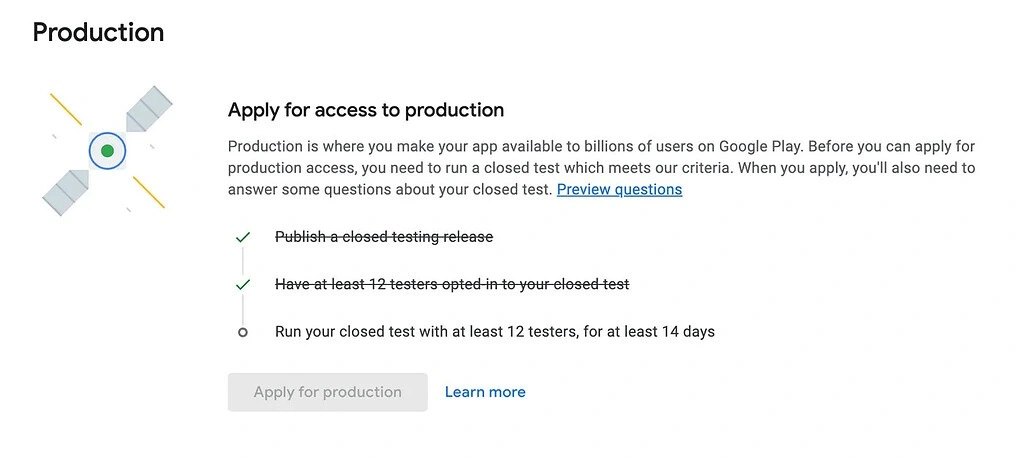
The expensive mistake: filling a leanback-only test with testers who have no TV. Your counter reaches 12, the 14 days pass, and then the production access application is refused because there was no engagement to show. Nothing about the counter warns you, and you find out two weeks later.
The Fix Google Itself Recommends
Before this sounds like a workaround, read what Android's own TV documentation says about how to structure a TV app:
"We recommend that you have a single app that supports both mobile devices and TV devices." Android Developers, Get started with TV apps
One app. One package name. One app bundle, delivered by Google Play to whichever device asks for it, showing the leanback interface on a television and the phone interface on a phone. This is how YouTube, Netflix, Spotify and Plex are built, and it is why you can install the same app on your phone and your TV without thinking about it.
The consequence for closed testing is the whole point of this guide. The testing policy says developers with personal accounts created after 13 November 2023 must run a closed test for their app with a minimum of 12 testers opted in continuously for at least 14 days. It is written per app. It never mentions form factors, device types or televisions. So one closed testing track covers your app everywhere it ships, and a tester using it on a phone is a tester of your app.
The manifest, which is where this is won or lost
Two uses-feature lines decide which devices Google Play will offer your app to, and two
launcher activities decide which interface each device opens. Get these four things right and the rest
is ordinary app work.
AndroidManifest.xml
<uses-feature android:name="android.software.leanback"    android:required="false" />
<uses-feature android:name="android.hardware.touchscreen" android:required="false" />

<application
    android:icon="@mipmap/ic_launcher"
    android:banner="@drawable/tv_banner">

    <!-- TV entry point. Unchanged. -->
    <activity android:name=".tv.TvMainActivity" android:exported="true">
        <intent-filter>
            <action   android:name="android.intent.action.MAIN" />
            <category android:name="android.intent.category.LEANBACK_LAUNCHER" />
        </intent-filter>
    </activity>

    <!-- Phone entry point. New. -->
    <activity android:name=".phone.PhoneMainActivity" android:exported="true">
        <intent-filter>
            <action   android:name="android.intent.action.MAIN" />
            <category android:name="android.intent.category.LAUNCHER" />
        </intent-filter>
    </activity>

</application>
leanback, required false
Says your app can use TV features but does not demand TV hardware. Left at true, Google Play hides the app from every phone, which is exactly why your testers cannot install it. Your TV app still works identically.
touchscreen, required false
Televisions have no touchscreen. If this line is missing or set to true, your app vanishes from Google Play on TV devices. It needs to be there in both cases, so check it while you are in the file.
Keep the two launcher activities separate. Do not merge them by putting both categories on one activity, because then a phone opens your leanback interface and a D-pad UI driven by a thumb is a bad first impression for a tester. Two entry points, one per form factor, and neither one knows the other exists.
Where the line actually is
This approach is compliant because every claim it makes is true. It is one app, and it really does run on both form factors. The testers really install it, really open it, and really report on what they used. Nobody is asked to say anything that did not happen.
What is not compliant is shipping a phone build that does nothing. Google's Minimum Functionality policy exists for exactly that, and an app that opens on a blank screen or a note telling people to use their television will be removed whichever form factor it was aimed at. The next section is about staying comfortably on the right side of that.
What to Build on the Phone Side
Small is fine. Empty is not. That is the entire rule, and it is worth saying plainly because developers tend to assume they now owe Google a second full product. They do not. Four or five screens that mirror what your TV app is for, built on the data your TV app already loads, is a complete and honest phone experience.
A tester should be able to open it, understand what it is within a few seconds, and do the thing your app does. Pick the shape that matches yours:
Streaming or video app Home, Detail, Player, Search, Settings
The same catalogue the TV app already loads, in a vertical list. Tapping an item opens a detail screen, which plays. Search filters the same data. It is your TV app, rearranged for a thumb.
IPTV or media player Playlists, Channels, Player, Settings
Let people add or open the same playlist source, browse channels, and play one. Settings carries the same preferences the TV build already has, such as buffer size or default player.
Game Home, Mode picker, The game, Settings
Adapt the play surface to portrait and swap D-pad input for touch. Most casual TV games port to a phone in an afternoon because the game logic never changes, only the input and the layout.
Utility, dashboard or remote Main view, Detail, Settings, About
Show the same primary information the TV app shows, one level of detail underneath it, and the same settings. A phone remote or companion view for the TV app is a genuinely useful thing to ship.
One more reason to make it good rather than minimal: your phone build is now a real listing on the largest app surface there is. Developers who do this properly tend to find the phone version picking up installs on its own, which is a strange thing to be annoyed about.
Build It With AI in an Afternoon
You do not have to design this from scratch. Adding a phone interface to an existing app is close to an ideal task for an AI coding tool, because all the hard decisions (what the app is, where the data comes from, what it looks like) are already answered inside your project. The model reads them and writes the layer on top.
Open your TV app's folder in Claude Code, Cursor, Gemini CLI or Codex, paste this in, and answer the handful of questions it comes back with. It is written to leave your TV code alone, to refuse to ship an empty shell, and to hand you a signed bundle at the end.
The phone UI prompt
You are a senior Android engineer taking full ownership of this project. This folder holds an Android TV app. It targets the leanback (TV) form factor, so Google Play only offers it to people who own an Android TV or Google TV device. That is my problem: my Google Play developer account has to run a closed test with 12 testers for 14 days before this app can go to production, and almost nobody I can reach owns a TV device to test on.

YOUR MISSION
Make this same app also run on Android phones, by adding a small but genuinely useful phone interface to it. Same project, same package name, same signing key, one app bundle that serves both TVs and phones. Google's own TV documentation recommends exactly this: "We recommend that you have a single app that supports both mobile devices and TV devices." So this is the supported architecture, not a trick. When you are done, hand me back a signed .aab I can upload to my closed testing track.

Two things must be true when you finish:
1. The TV experience is exactly the experience it is today. You are adding, never rewriting.
2. The phone experience is real, working software that a stranger can open and actually use. Not a splash screen. Not a "open this on your TV" placeholder. Not an empty shell. Google's Minimum Functionality policy rejects apps like that, and a tester who opens a dead app has nothing to report back to me.

HOW YOU WORK
- Be autonomous. Read the project, decide, and act. Do not ask me for anything you can find in the files.
- When you do need me, ask one thing at a time, say why, and give me the exact command or the exact clicks. I may have no Android tools installed and I may not know the command line, so work out my operating system and give me copy-paste steps, then check they worked.
- Keep me posted in plain language, and define any technical word the first time you use it.
- Never print, save, or log my keystore passwords.

PHASE 1 - READ WHAT IS ALREADY HERE
Work out how this app is built: native Android (Kotlin or Java), Flutter, React Native, Unity, or something else. Then find and write down:
- the applicationId (package name), the current versionCode and versionName, the minSdk and targetSdk
- the TV launcher activity, the one carrying the CATEGORY_LEANBACK_LAUNCHER intent filter
- every uses-feature line in the manifest, especially android.software.leanback and android.hardware.touchscreen
- the app name, launcher icon, TV banner, colours and fonts
- what the TV app actually DOES: its screens, where its data comes from, whether it plays media, whether it has a login
Give me a five line summary, then keep going.

PHASE 2 - DECIDE WHAT THE PHONE SIDE SHOULD BE
The phone side needs four or five screens. No more. They must mirror what the TV app is for, using the same data the TV app already uses, so it is honestly the same product on a smaller screen. Do not invent features the TV app does not have. Do not add a backend.
Choose the shape from what you found in Phase 1. For example:
- a TV app that browses and plays video: a Home list of the same content, a Detail screen, a Player, a Search screen, a Settings screen
- a TV media or IPTV client: a Playlists screen, a Channels list, a Player, a Settings screen carrying the same preferences
- a TV game: a Home screen, a level or mode picker, the game itself adapted to a portrait touch screen, a Settings screen
- a TV utility or dashboard: the same primary view, a detail view, a Settings screen, an About screen
Tell me in two or three lines which screens you picked and why, then build them. If the TV app genuinely has no content to show without a TV device attached, say so and ask me once.

PHASE 3 - BUILD THE PHONE UI
- Use the platform's normal phone toolkit. For native Android that means Jetpack Compose with Material 3, or Views with Material Components if this project already uses Views. Never put leanback classes on the phone path, and never put phone classes on the TV path.
- Portrait first. Do not crash or lose state when the phone is rotated.
- Touch targets of at least 48dp. Working back navigation. A loading state, an empty state, and an error state with a Retry button on every screen that loads something. Never a blank white screen.
- Reuse the TV app's existing data layer: its models, repositories and networking. Only the UI layer is new. If the project has no separation between UI and data, extract the data layer first and leave the TV UI calling it unchanged.
- Match the app's existing colours, icons and typography so it is visibly the same product.
- Support dark mode if the app already has a dark palette.

PHASE 4 - WIRE UP BOTH FORM FACTORS IN ONE MANIFEST
This is the part that decides whether Google Play offers my app to phones at all. Get it exactly right.
- Set android.software.leanback to required="false". If it is currently required="true", the Play Store hides this app from every phone on earth.
- Set android.hardware.touchscreen to required="false". If that line is missing or set to true, the app disappears from Google Play on TV devices.
- Do the same for any other TV-only hardware feature the manifest currently requires.
- Leave the existing TV activity exactly as it is, with its ACTION_MAIN plus CATEGORY_LEANBACK_LAUNCHER intent filter and the android:banner attribute intact.
- Add a SEPARATE phone activity with ACTION_MAIN plus CATEGORY_LAUNCHER. Do not add CATEGORY_LAUNCHER to the TV activity, and do not add CATEGORY_LEANBACK_LAUNCHER to the phone activity. Two launcher activities, one per form factor, is what makes each device open the right entry point.
- Do not raise minSdk. Android TV wants minSdk 31 or lower to reach the common TV devices, so leave it where it is unless it is already higher than that.
- If the project uses build flavours or a separate TV module, keep the single applicationId and make sure the phone UI ships inside the same bundle rather than becoming a second app.
Show me the manifest diff when you are done.

PHASE 5 - KEEP THE APP'S IDENTITY
So this reaches Google Play as the same app and my testing progress survives:
- Keep the applicationId exactly the same. Never change it.
- Set versionCode one higher than it is now, and bump versionName sensibly.
- Reuse the same app name, icons, TV banner and colours.
Tell me the old and the new versionCode.

PHASE 6 - MAKE SURE THE BUILD TOOLS EXIST
Building an Android app needs a Java JDK 17 or newer and the Android SDK. Check what is already installed, for example by running java -version and looking for the Android SDK. For anything missing, work out my operating system and give me the simplest route:
- The all-in-one option is Android Studio from developer.android.com/studio, which includes both the JDK and the Android SDK.
- The lighter option is a JDK such as Temurin 17 plus the Android command line tools, with the exact commands to accept the licences and install what you need.
Tell me which one you recommend and why, and check it works before you rely on it.

PHASE 7 - BUILD AND SIGN
- Find the signing key. It is usually a .jks or .keystore file in the project, with the alias and passwords in gradle.properties, key.properties, or a signing info text file. If you find the key but not the credentials, ask me. If there is no key at all and this app has been uploaded to Google Play before, tell me clearly: every update must be signed with the same key, and if the app uses Play App Signing I can request an upload key reset in Play Console under Test and release, then App integrity.
- Produce a release .aab signed with that key, ready for the closed testing track.
- Also produce a release .apk so I can install it on my own phone before I ship anything.
- Tell me exactly where both files are.

PHASE 8 - PROVE IT WORKS, BOTH WAYS
Before you hand anything over, verify and report on all five of these:
- the phone APK installs and launches on a phone or a phone emulator, and every screen you built opens, loads, and navigates back correctly
- the TV app still builds, still launches on a TV emulator, and every screen is still reachable using only D-pad up, down, left, right, centre and back
- the merged manifest really contains leanback required="false" and touchscreen required="false". Read the merged manifest, not just the source one.
- the bundle contains both launcher activities
- nothing in the TV code path changed behaviour
If any of them fail, fix it and check again. Do not tell me it is done until all five pass.

FINALLY
Give me a short plain-language summary: what the phone app does, which screens exist, what changed in the manifest, the new versionCode, and where my .aab is. Then remind me of the two things I still have to do in Play Console myself: upload the bundle to the closed testing track, and set up the Android TV form factor listing with its 1280x720 TV banner and at least one TV screenshot.
Check two things yourself before you upload, whatever the model tells you. Install the APK on a real phone and walk every screen. Then run the TV build on an Android TV emulator and navigate it using only the D-pad. If both still feel like the app you meant to ship, you are ready.
Upload It to Closed Testing
From here it is the normal path, with one TV-specific detail at the end. The click path in Google Play Console is:
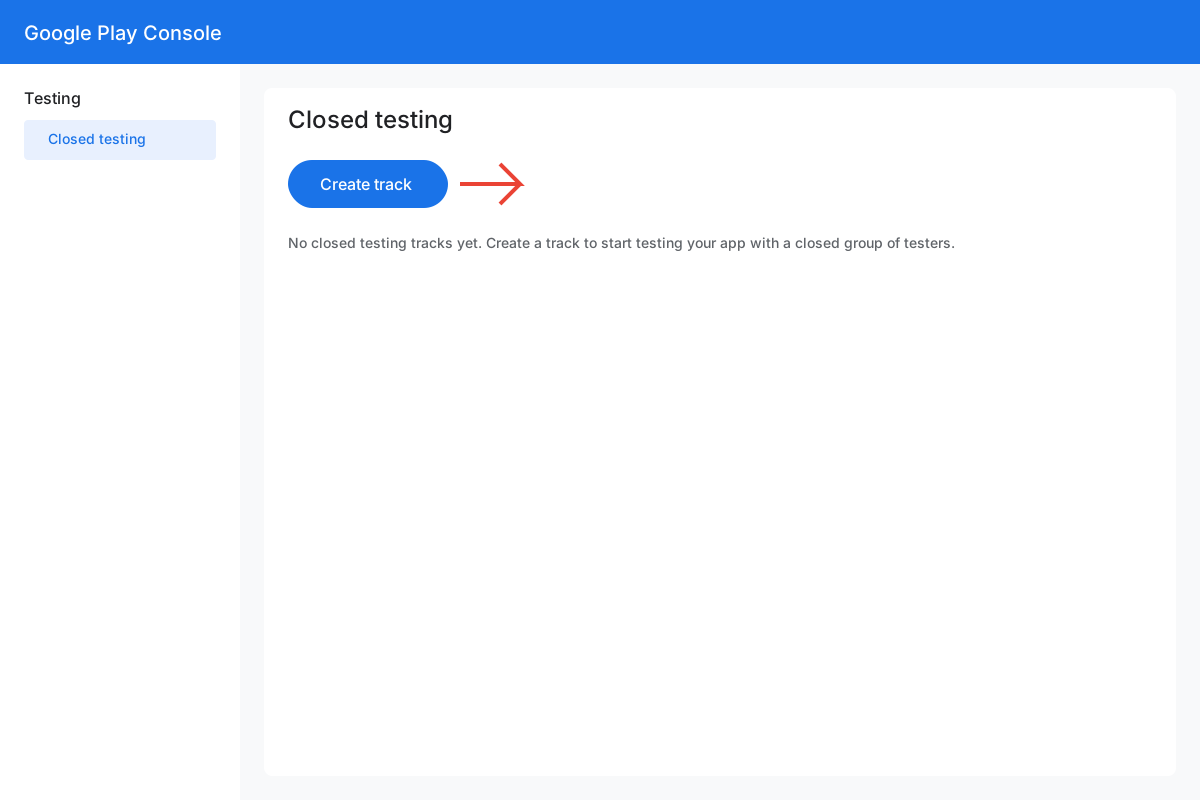
Play Console > Test and release > Testing > Closed testing > Create track > upload your .aab > Countries > Roll out
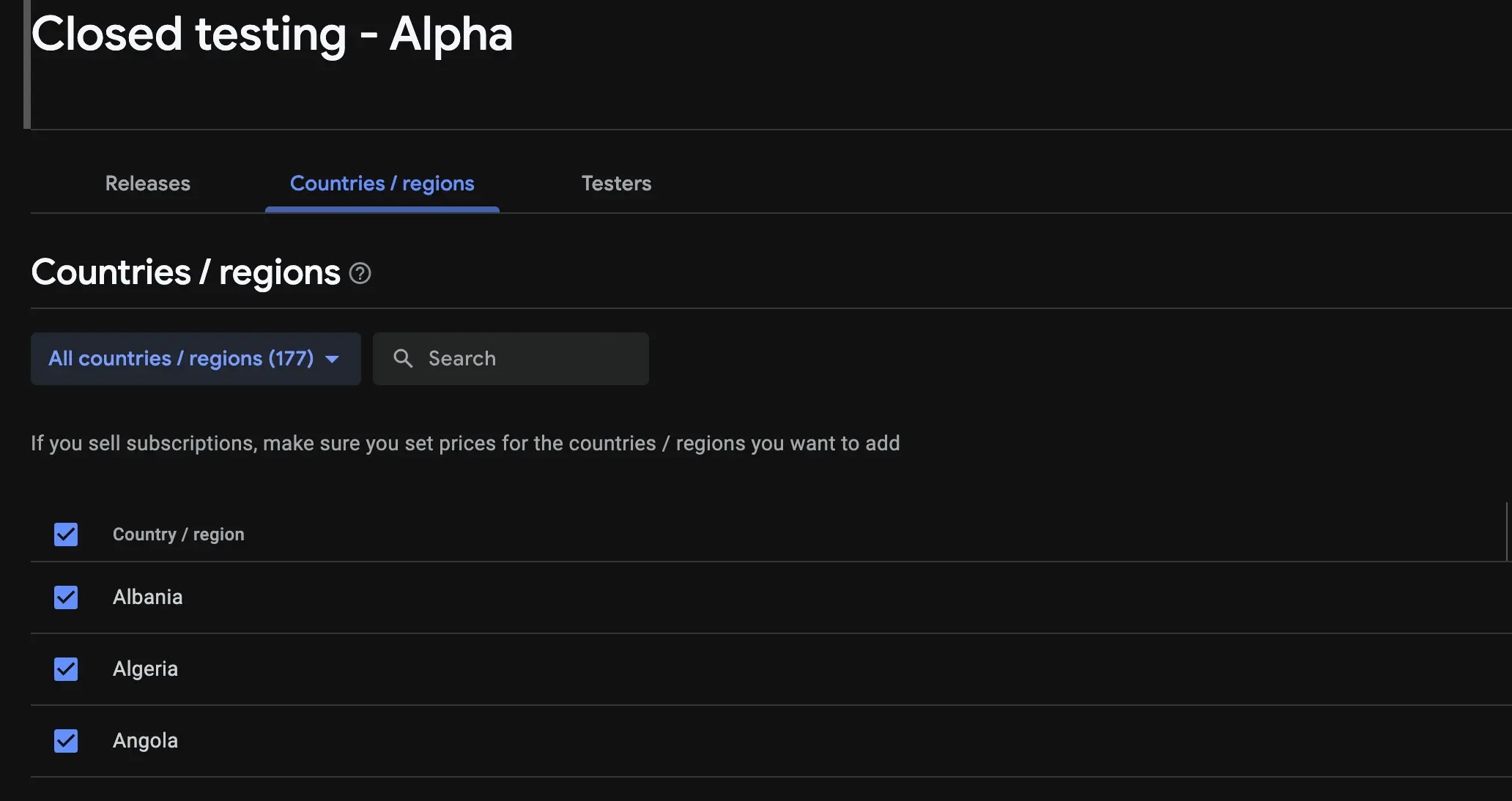
- Select all countries on the track Closed testing tracks carry their own country list. If you leave it at your home country, testers elsewhere simply cannot opt in, and you will spend days debugging the wrong thing.
- Roll out, then wait for the release to go live A first closed release goes through review. Until it shows as available to testers, your opt-in link does nothing. If a tester says the link is broken on day one, this is usually why.
- Copy the web opt-in link from the Testers tab Google never emails your testers. Open the track, go to the Testers tab, scroll to how testers join your test, and copy the link yourself. That link is what you hand to your testers.
- Add the Android TV form factor listing Under form factors in Play Console, add Android TV and upload the 1280 x 720 TV banner and at least one Android TV screenshot. You can start the closed test before this is finished, but it has to be done before your production release is reviewed.
Getting the 12 Testers
Now that your app installs on a phone, the hard part is over and this becomes an ordinary closed test. Two routes, depending on whether you would rather spend time or money.
Free, slower
The free community app
You test other developers' apps, earn credits, and spend them on testers for yours. It costs nothing but your own testing time, and delivery lands in about 36 hours once you have the credits. More than 50,000 apps have gone through it.
Paid, within 6 hours
The Testers Community service
Submit your closed testing opt-in link and verified testers begin joining within 6 hours. Starter is $15 for 15 testers, three more than Google's minimum. They stay engaged for the full 14 days and send feedback you can quote on the production access form. Approved, or your money back.
Aim above 12. Twelve is the floor Google measures, not the target you should plan for. Someone will change phones or clear an account during a fortnight, and dropping under the line thins the engagement your production access review is judged on. Fifteen to twenty-five active testers is the comfortable range.
The TV Requirements You Still Have to Meet
Solving the tester problem does not exempt you from the TV side. Your Android TV listing is reviewed against Android's TV app quality requirements when your production release goes out, and this is where a TV app that sailed through closed testing can still get held up. Work through this before you promote anything.
TV-ML A leanback launcher activity
The TV activity keeps its ACTION_MAIN plus CATEGORY_LEANBACK_LAUNCHER intent filter. Without it your app is invisible to Google Play on TV devices.
TV-MT Touchscreen declared as not required
android.hardware.touchscreen must be required="false". If that line is missing or true, your app disappears from Google Play on TVs, which is the opposite problem to the one this guide solves.
TV-DP Everything reachable with a D-pad
All functionality has to be usable with up, down, left, right, centre and back. No feature may need a mouse, a touchscreen or the menu button.
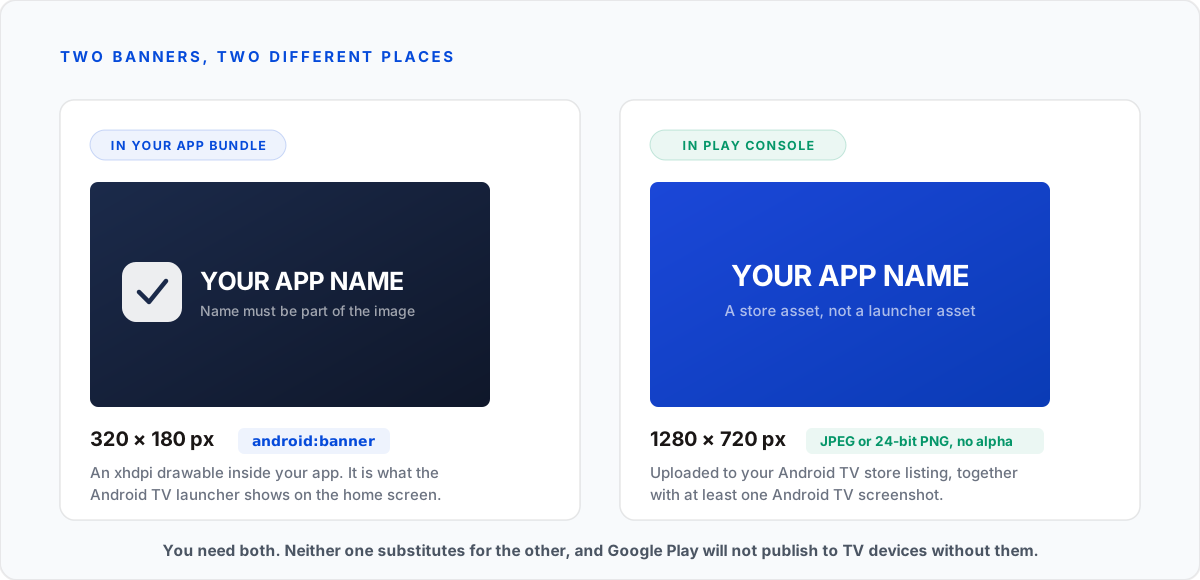
TV-LB A 320 x 180 banner containing your app name
That is the xhdpi drawable set with android:banner, and it is what the Android TV launcher shows. It is separate from the 1280 x 720 banner you upload to Play Console.
TV-LO Landscape, full screen, inside the overscan area
No letterboxing, no transparent background, and no text or controls clipped by the edge of the panel. Televisions cut off the border of the picture more than you expect.
TV-PS minSdkVersion 31 or lower
Common Android TV devices sit well behind phones. Raising minSdk to chase a new phone API is the quiet way to lose most of your TV audience.
The two banners people mix up
An Android TV app needs two completely different banner images, and supplying one of them twice is a
common way to get held up at review. The 320 x 180 launcher banner is an xhdpi drawable
inside your app bundle, pointed at by android:banner, and it has to contain your app name
as part of the image because it is what the Android TV home screen displays. The
1280 x 720 TV banner is a store asset you upload to Play Console in JPEG or 24-bit PNG
with no alpha channel. Neither substitutes for the other.
The Timeline, Start to Live
Assuming you start with a working Android TV app and add the phone side today, here is the realistic shape of the next three weeks.
- Day 0: add the phone side and upload Add the phone screens, flip the two manifest lines, bump the versionCode and upload the signed bundle to your closed testing track. Select all countries on the track so no tester is blocked by availability.
- Day 0 to 1: Google reviews the closed release A first closed testing release goes through review before anyone can opt in. Usually a few hours to a couple of days. Your opt-in link does nothing until the release shows as available to testers.
- Day 1: testers join Paste your opt-in link into your tester source. With the paid service, verified testers begin joining within 6 hours and install on their phones the same day.
- Day 1 to 15: the 14-day window runs Testers keep the app installed and open it across the two weeks. Dropping below 12 partway through does not reset or pause the clock, but it does thin out the engagement Google reads later, so keep a buffer above 12.
- Day 15: apply for production access The Apply for production button unlocks and you answer the 10-question form about your test. Answer it from the real test you just ran.
- About 48 hours later: the decision Google reviews the application and checks how engaged your testers actually were. The result usually arrives within 48 hours.
- Then up to 7 days: the production review Approval does not publish anything. You create a production release, and that goes through a fuller review that averages up to 7 days. Your Android TV form factor listing is reviewed here too, so it needs to be finished by this point.
Realistic total: about three weeks from the day you upload to the day your Android TV app is live, most of which is the mandatory 14-day window. Compare that to the months a leanback-only test can sit at four testers.
Answering the Production Access Form
On day 15 you answer 10 questions about the test you just ran. Two of them matter more than the rest for a cross-device app, and the right move on both is simply to describe what actually happened. Reviewers read a great many of these, and a straight account of a real test reads very differently from a padded one.
How did you recruit users for your closed test?
"The app ships to both Android TV and phones from one bundle, so I recruited testers for the phone experience, where I could reach real users. I shared the closed testing opt-in link with a testing community of Android developers and used a paid testing service to reach the rest. All of them opted in through the link with the Google account I invited, and installed and used the app across the full test window."
Describe the engagement you received from testers
"Testers opened the app repeatedly over the two weeks and reported back by email. The recurring points were [your real feedback here], which I fixed in versions [x] and [y]. I tested the TV interface myself across an Android TV emulator and a physical device."
Every question is covered with a sample answer in our guide to the Google Play production access form.
Frequently Asked Questions
How do I find testers for an Android TV app?
Stop looking for people who own televisions and make the app installable on phones instead. An Android TV app that declares leanback as not required, keeps its TV launcher activity and adds a phone launcher activity is one app that Google Play offers to both form factors. Phone testers then join the same closed testing track, and they count toward the 12 testers requirement because that requirement is measured per app, not per device type. Google's own TV documentation recommends a single app supporting both mobile and TV.
Do my testers need an Android TV or Google TV device?
No, as long as your app bundle also runs on phones. The closed test is attached to the app, not to a form factor, so testers who install and use the phone experience satisfy the requirement. If your bundle is leanback-only, then yes, every tester needs a TV device, which is why those tests stall.
Is it against Google Play policy to add phone screens to an Android TV app so it can be tested?
No. Building one app that supports several form factors is the architecture Google recommends in its Android TV documentation, and every major TV app on the Play Store does it. What would breach policy is shipping a phone build with no real functionality, because Google's Minimum Functionality policy rejects apps that do nothing, and telling testers to misreport what they tested. Build a small phone experience that genuinely works and you are inside the rules, not around them.
Does the 12 testers requirement apply separately to Android TV?
No. Google's policy says developers with personal accounts created after 13 November 2023 must run a closed test for their app with at least 12 testers opted in continuously for 14 days. It is written per app and says nothing about device types. One closed test covers your app across every form factor it ships to.
Why does my tester see "your device is not compatible with this version"?
Almost always because android.software.leanback is set to required="true" in your manifest, which tells Google Play the app needs TV hardware. Phones are then filtered out of distribution entirely. Setting it to required="false" while keeping the leanback launcher activity makes the app available to phones without removing it from TVs.
Can a tester without a TV still opt in to my TV-only closed test?
Technically yes, and this is the trap. Accepting the invitation happens on a web page, so the opted-in counter can reach 12 even when nobody can install anything. But Google checks tester engagement when you apply for production access, and an app nobody could open produces none. The counter passes and the application gets rejected, which costs you the whole 14 days.
Will adding a phone UI break my Android TV app?
It should not, because you are adding rather than rewriting. Keep the existing TV activity and its CATEGORY_LEANBACK_LAUNCHER intent filter untouched, add a separate phone activity with CATEGORY_LAUNCHER, and never let leanback classes onto the phone path or phone classes onto the TV path. Before you upload, check that the TV build still launches on a TV emulator and every screen is still reachable with the D-pad.
How small can the phone experience be?
Four or five screens is plenty. It has to be real, not big. A tester should be able to open it, do the thing your app is for, and come back to it over the two weeks. What fails is an empty shell: a splash screen, a single page pointing people at their television, or placeholder content.
Can I just publish a second, phone-only app instead?
You can, but it does not help. A separate package name is a separate app, so it needs its own closed test with its own 12 testers, and it does nothing for the TV app's requirement. Keeping one applicationId is the entire point: one test, one production access application, both form factors.
Do I need a separate closed testing track for the Android TV form factor?
No. There is one closed testing track for the app, and the bundle you upload serves both form factors. What is separate is the Android TV store listing, which you add under form factors in Play Console and which Google reviews alongside your production release.
What does the Android TV store listing need?
A TV banner at 1280 x 720 px in JPEG or 24-bit PNG with no alpha channel, and at least one Android TV screenshot. Google will not let you publish to TV devices without them. That is separate from the 320 x 180 launcher banner your manifest points at with android:banner.
Can I use an Android TV emulator instead of finding testers?
Use it for your own testing, absolutely, and you should before you ship. It does not count toward the requirement. Google needs 12 real people opted in through your link for 14 days, and emulator sessions on your own machine are not testers.
How long does the whole thing take for an Android TV app?
Adding the phone screens is usually an afternoon with an AI coding tool. After that it is the standard path: a closed release review of up to a couple of days, the 14-day test, a production access result typically within 48 hours, then a production review averaging up to 7 days. Plan for about three weeks from upload to live.
My TV app streams licensed content I cannot show on phones. What then?
Ship the phone side with only what you are licensed for and make it genuinely useful: browsing the catalogue, managing a watchlist, account and subscription management, or a remote and cast controller for the TV app. Those are real features that real testers can use and report on. What you cannot do is ship an empty screen and call it a phone app.
Your App Installs on Phones Now. Get the Testers.
Verified testers begin joining within 6 hours, opt in with the right Google account, and stay engaged for the full 14 days. Approved, or your money back.
Sources
- Set up an open, closed, or internal test, Google Play Console Help
- App testing requirements for new personal developer accounts, Google Play Console Help