
Pass Google Play closed testing with phone-only testers. No smartwatch owners needed.
The problem, and the fix
The Problem
Google requires 12 testers with smartwatches for a 14-day testing period. Finding Galaxy Watch or Wear OS device owners willing to test your watch face is nearly impossible.
The Solution
Create a companion phone app with the same package name. Mobile testers count toward your watch face's testing requirements.
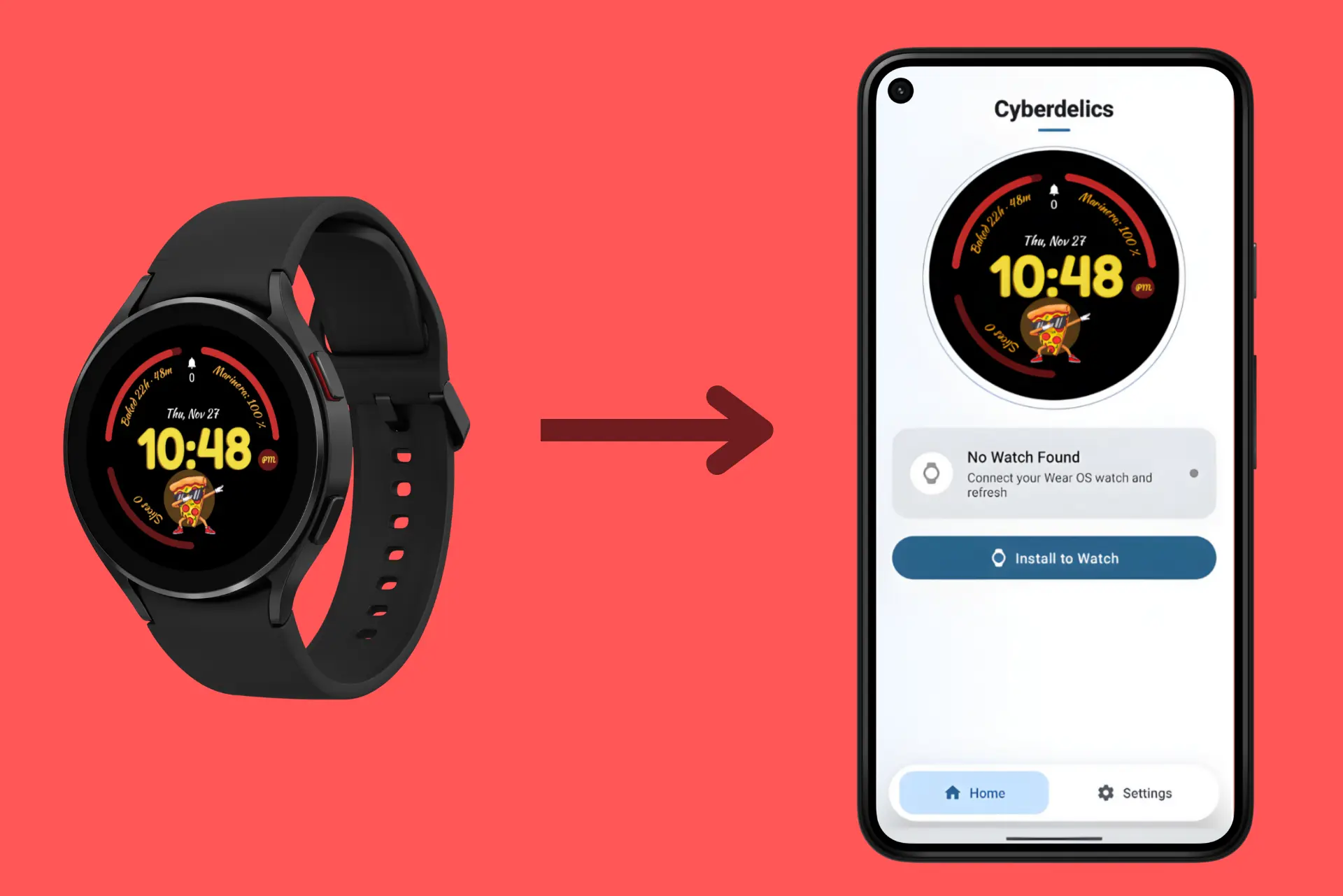
Same package name
Links to your watch face
Same keystore
Proves same developer
Shared testing track
Mobile testers unlock watch face
Prerequisites
Before you begin, make sure you have:
- Your keystore file - the same
.jksfile you used to sign your watch face or WearOS app - Keystore credentials - password, key alias, and key password
The companion app must be signed with the exact same keystore you used for your watch face or WearOS app. Using a different keystore will result in a signature mismatch and Google Play will reject the upload.
How to find your keystore file
Android Studio users:
Go to Build → Generate Signed Bundle/APK and note the keystore path. Common
locations include your project folder or ~/.android/
Galaxy Watch Face Studio users:
Go to Project → Build → Manage Certificates to export your keystore. Select
your certificate and click Export to save the .jks file.
Step 1: Generate the Companion App
Use our free Companion App Generator to create a phone app that matches your watch face or WearOS app. The tool builds a simple companion app that displays your watch face preview and includes basic settings.
- Enter your app name - Use the same name as your watch face for consistency
- Enter your package name - This must exactly match your watch face's package name
- Upload a preview image - A screenshot or preview of your watch face (400×400px recommended)
- Fill optional fields - Privacy policy URL, support email, and version details
- Click Generate - Wait 5-7 minutes while the app is built
- Download files - Get the AAB file (for Play Store) and optionally the APK (for testing)
Double-check your watch face's package name before generating. Even a small typo will prevent the apps from being linked on Google Play.
Step 2: Sign the AAB File
The AAB file you downloaded is unsigned. Before uploading to Google Play, you need to sign it with your keystore. The easiest way is to use our free online signing tool.
Free Online AAB Signer
Upload your AAB and keystore, enter your credentials, and download the signed file. Your files are processed securely and deleted immediately after signing.
- Upload your unsigned AAB file
- Upload your keystore and enter credentials
- Download the signed AAB (ready for Play Store)
The signing tool is open source and processes files server-side using the official Java
jarsigner. Your keystore and credentials are never stored, files are deleted
immediately after signing.
Alternative: If you prefer not to use this tool, you can sign locally. Just ask any AI model: "I have an unsigned AAB file and a keystore file. Guide me step by step on how to sign the AAB using my keystore."
Step 3: Upload to Google Play Console
With your signed AAB ready, head to the Google Play Console to upload your companion app.
- Create a new app in Google Play Console (or use your existing watch face listing)
- Go to Closed Testing and create a new track
- Upload the signed AAB Google will verify the signature matches your app
- Complete the store listing Add description, screenshots, content rating, and data safety form
- Add testers and start testing Invite 12+ testers to join your closed testing track
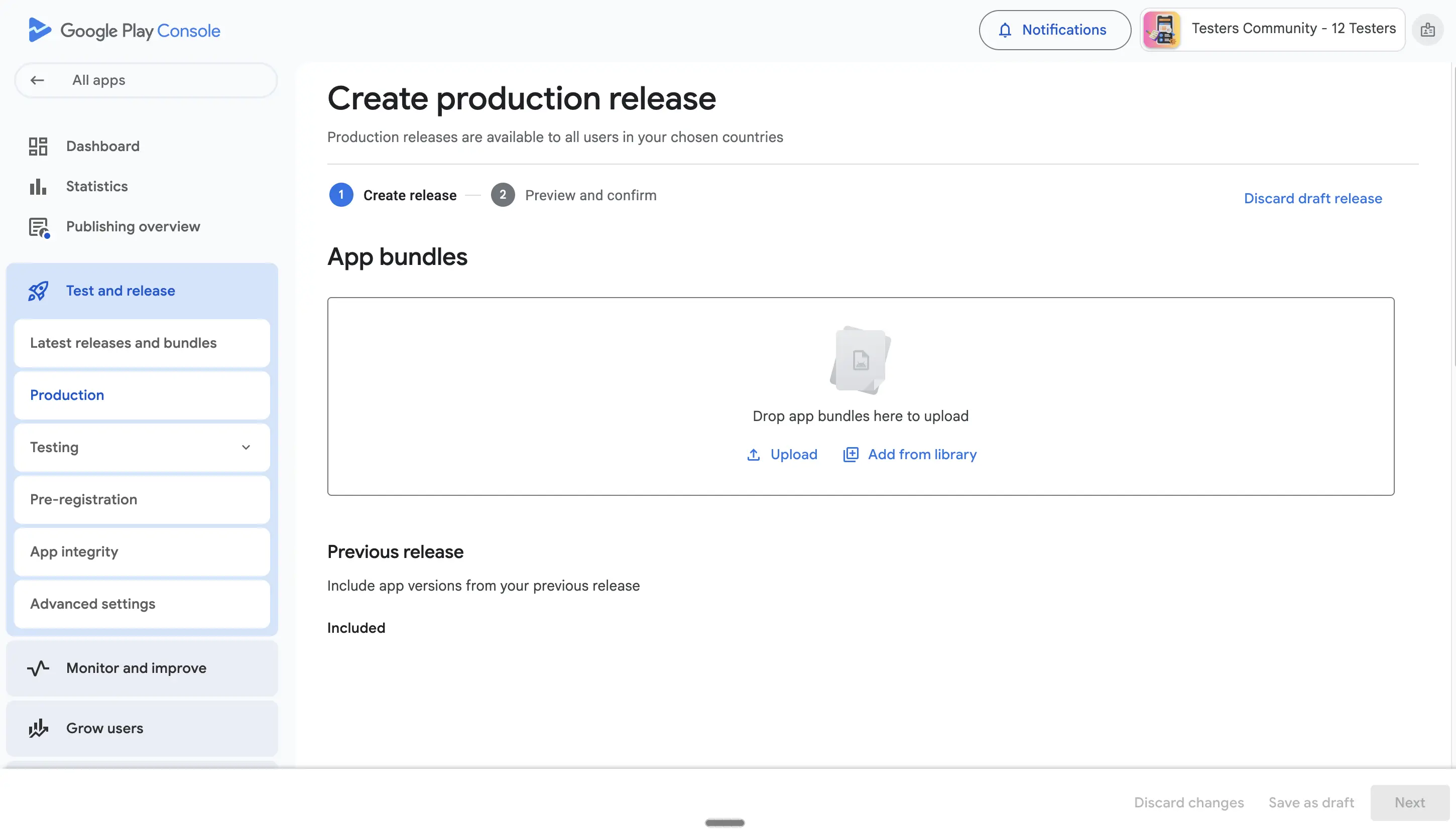
Once your companion app passes the 14-day closed testing requirement with 12+ testers, you can promote your watch face directly to production. The testing requirement is shared across both form factors.
That's it. You've completed all the steps.
Now you just need 12 testers to join your closed testing track and actively test your app for 14 days. Once that's done, your watch face will be eligible for production release on Google Play.
Get 12 Testers Now →Frequently Asked Questions
Version code mismatch error when uploading
This error occurs when the version code in your AAB is lower than or equal to a previously uploaded version.
Solution: Check your current version code in Play Console under Release → App Bundle Explorer. Then regenerate your companion app with a higher version code.
What if I lost my keystore?
If you're enrolled in Play App Signing, you can request an upload key reset through Google Play Console. This allows you to create a new keystore while keeping your existing app listing.
If you're not enrolled and have lost your keystore, unfortunately you cannot update your existing app. You would need to create a new app listing with a new package name.
Can I use a different signing method?
Yes. You can sign AAB files using multiple methods:
- Android Studio - Build → Generate Signed Bundle
- jarsigner - Command-line tool included with Java JDK
- apksigner - Part of Android SDK build tools
Use the AI prompt provided earlier in this guide for step-by-step instructions.
How long does the entire process take?
- Generate companion app: 5-7 minutes
- Sign the AAB: 2-5 minutes
- Google review: 1-3 days
- Closed testing period: 14 days minimum
Is the online signing tool safe to use?
Yes, the signing tool is completely safe. It is fully open source, so you can inspect every line of code yourself to verify exactly what it does:
- The entire source code is publicly available, you can check the code of the signer directly
- Files are processed server-side and deleted immediately after signing
- Uses the official Java jarsigner tool under the hood
- Your keystore credentials are never stored, logged, or transmitted anywhere
- No data is retained after your signing session ends
Being open source means full transparency, there are no hidden processes or data collection. If you still prefer to sign locally, you can use the AI prompt provided earlier in this guide.
Why does Google Play require 12 testers?
Google introduced the 12-tester requirement in 2023 to combat spam and low-quality apps on the Play Store. By requiring developers to have real users test their app for 14 days, Google ensures:
- The app has been validated by real users before public release
- Developers are committed to their app's quality
- Spam and malicious apps are filtered out early
What is Google Play closed testing?
Google Play closed testing is a pre-release testing track that allows you to distribute your app to a limited group of testers before making it publicly available. Key features:
- Only invited testers can access and download the app
- Testers must opt in via a testing link you provide
- The app is not visible on the public Play Store during testing
- You need at least 12 testers who have opted in
- Testing must run for a minimum of 14 consecutive days
How do I get production access for my WearOS app?
To get production access for your WearOS app or watch face:
- Complete the 14-day closed testing period with 12+ active testers
- Fill out all required store listing information
- Complete the content rating questionnaire
- Submit the data safety form
- Request production access in Play Console
Using the companion app strategy, your phone app testers count toward the WearOS app requirements.
Do testers need a WearOS smartwatch?
No. That's the beauty of the companion app strategy:
- Testers only need a regular Android phone
- They install and test the companion app on their phone
- These testers count toward your WearOS app's 12-tester requirement
- No Galaxy Watch, Pixel Watch, or other WearOS device is needed
This makes finding testers significantly easier since Android phone users are far more common than smartwatch owners.
What happens after 14 days of closed testing?
After completing the 14-day closed testing period with at least 12 testers:
- You become eligible to apply for production access
- Go to Play Console → Release → Production → Create new release
- Google will review your production release request
- Review typically takes 1-7 days depending on app complexity
- Once approved, your WearOS app or watch face goes live on the Play Store
Can I use the same testers for multiple watch faces?
Yes, the same testers can help test multiple apps. However, each app requires its own:
- Separate closed testing track
- Unique testing opt-in link
- 14-day testing period (periods can run simultaneously)
- Companion app with matching package name
If you have multiple watch faces to publish, you'll need to create a companion app for each one with the corresponding package name and keystore.
How do I find testers for WearOS apps?
Finding testers for WearOS apps and watch faces can be challenging since you'd normally need people with smartwatches. Here are the best approaches:
- Use the companion app strategy - As described in this guide, create a companion phone app so regular Android phone users can count as your testers. No smartwatch needed.
- WearOS communities - Share your testing link in WearOS and Galaxy Watch forums, Reddit communities (r/WearOS, r/GalaxyWatch), and Discord servers.
- Social media - Post in watch face and WearOS groups on Facebook, X, or other platforms where enthusiasts gather.
- Professional testing service - Use a service like Testers Community to get verified testers who will actively test your app throughout the full 14-day period.
The companion app approach is by far the easiest, it removes the smartwatch barrier entirely and lets any Android phone user help you meet Google's 12-tester requirement.
Need Help Finding Testers?
Don't have 12 testers? Our professional testing service provides verified testers who will actively test your companion app throughout the 14-day period.
Sources
- Set up an open, closed, or internal test, Google Play Console Help
- App testing requirements for new personal developer accounts, Google Play Console Help