
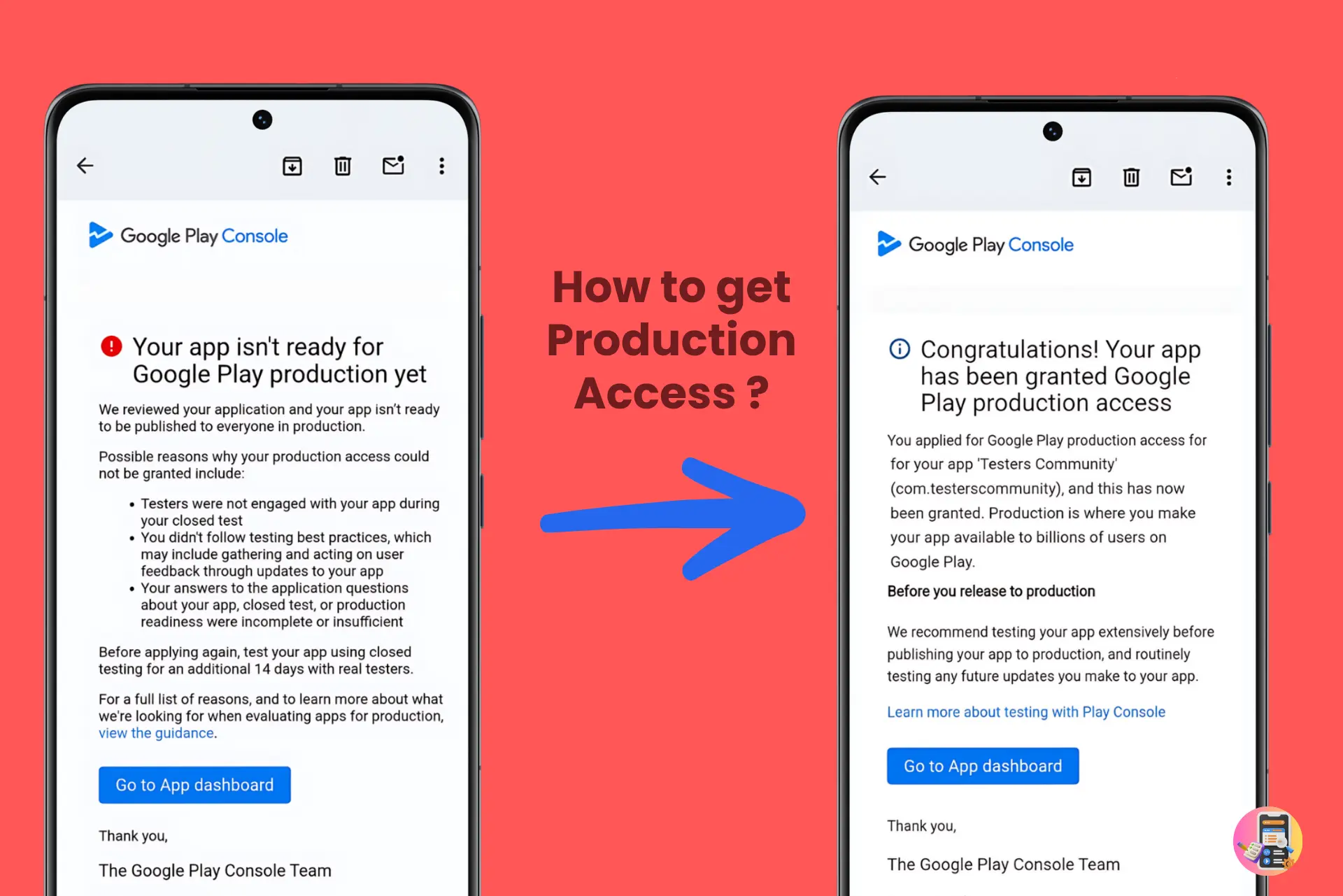
If Google keeps refusing production access and blaming your testers, your TWA is the real reason, not your testers. The fix is simple: publish a WebView app instead of a TWA. This guide explains why in plain language and walks you through the fix, step by step.
Quick answer
A TWA opens your website inside Chrome, so Google cannot see your testers using it and rejects the app for low engagement. The fix is to publish a WebView app instead, which runs your website inside your own app where the activity counts. Nothing about your website changes, and you keep your package name and your testing progress. You can convert it yourself in about an hour with the prompt below, no coding needed.
What a TWA Is, and Why Google Play Rejects It
A TWA, or Trusted Web Activity, is a thin wrapper that turns your website into an installable Android app. It is what tools like PWABuilder and Bubblewrap produce. When you open your app, the TWA immediately hands your website to the Chrome browser, which shows it fullscreen with no address bar. It looks like a native app, but under the hood it is your website running inside Chrome.
That is exactly where the rejection comes from. To reach production, Google requires 12 testers to actively use your app for 14 days. But with a TWA, the activity happens inside Chrome, not inside your app. Google's review looks at usage inside your app and finds almost none, no matter how active your testers really were. So it rejects production access and points to tester engagement, even though your testers did nothing wrong.
Worth knowing: Google never publishes exactly what its review measures. But this rejection shows up far more on TWA builds than on any other type, and it disappears when the same app is rebuilt as a WebView. Resubmitting the same TWA almost always fails the same way, which is why the fix is a rebuild, not a retry.
TWA vs WebView, and Why WebView Fixes It
Both show your website and both look identical on screen. The only difference is where your website runs, and that single detail decides whether Google can see your testers using the app.
TWA - what you have now
When you open your app, it launches Chrome, and Chrome shows your website.
Your app is really just a launcher that trusts your website. All the activity happens inside Chrome, so Google sees an app that nobody seems to use.
WebView - the fix
When you open your app, it shows your website inside itself.
The website runs inside your own app, using Android's built-in browser engine. All the activity belongs to your app, so Google sees exactly how engaged your testers are.
That is the whole story. Nothing about your website changes and your users see the same screens. Only the wrapper changes, from Chrome's wrapper to your own, and that is enough to solve the engagement rejection.
The Fix: Convert Your TWA to a WebView App
There is one reliable way through: rebuild your app as a WebView so your testers' activity finally counts. Resubmitting the same TWA almost always fails the same way, because the problem is the wrapper, not the testers. The conversion keeps everything that matters and takes about an hour with the prompt below.
Please note
Testers Community does not accept TWA apps on any plan. Because Google often fails to record tester engagement for TWAs, testing one would waste your money and your 14 days, so we pause TWA submissions instead of taking them. Convert your app with this guide first, then submit the WebView build as a normal app. If your testing was paused mid-run because your app turned out to be a TWA, upload the WebView build to the same track and we resume your testing on the same plan right away.
Your app keeps its identity
Same package name, same signing key, same app name and icons. Google Play sees a normal update, not a new app.
Your testing progress survives
The new build goes to the same closed testing track. Your testers update automatically and the 14-day clock keeps running.
Your website stays untouched
Only the Android wrapper changes. Your site, your users, and your content work exactly as before.
First, Find Out Which Tool Built Your App
Almost every TWA on Google Play comes from one of two tools: PWABuilder or Bubblewrap. Both convert the same way, but knowing which one you used tells you where your project files and your signing key live. Thirty seconds here saves you an hour later.
You used PWABuilder if...
You entered your website on pwabuilder.com and downloaded a zip file. Unzip it and look inside:
your signing key is signing.keystore and the passwords are in
signing-key-info.txt.
Wondering where the source code is? By default there is none, and that is fine: the AI reads your package name and version straight out of the .aab or .apk and builds the WebView app from those.
Tip: you can get the source code too. On pwabuilder.com, on the screen where you enter your package name, scroll down and click All Settings, then enable Include source code. Your download then contains the full Android project, which gives the AI even more to work with.
You used Bubblewrap if...
You ran commands like bubblewrap init on your computer. Your project folder holds
twa-manifest.json with your URL, package name, and version, plus your
android.keystore signing key.
That one folder is everything the conversion needs. If you deleted it, the prompt below helps you recreate the missing pieces.
A trap to avoid: PWABuilder and Bubblewrap both have a setting called a WebView fallback. It sounds like the fix, but it is not. The fallback only kicks in on phones that have no TWA-capable browser, and nearly every Android phone has Chrome. Re-packaging with the fallback turned on still gives you a TWA on your testers' phones, and the engagement problem stays. The fix is a real conversion, which is what the next section does.
The Approach: Convert Your TWA to a WebView
You do not need to code and you do not need to prepare anything. Your app's folder already has everything the AI needs. Copy the prompt below, paste it into your AI model, and it builds the WebView app for you. Then you just upload the file to Google Play.
Find your app's folder
The one you got when you built your TWA. PWABuilder users: your unzipped download. Bubblewrap users: the folder where you ran it.
Open it in a free AI tool
Google Antigravity is free. Cursor or Claude Code work too. Open the tool, then open your app's folder in it.
Paste the prompt
Copy the prompt below and give it to the AI. It converts your app to a WebView. You just upload.
The conversion prompt
You are a senior Android engineer taking full ownership of this project. This folder holds an app that is currently a TWA (Trusted Web Activity) wrapping my website. It was built to publish on Google Play, but Google keeps refusing production access because a TWA runs my website inside Chrome instead of inside the app itself, so the app looks unused.

YOUR MISSION
Convert this app into a standard Android WebView app and give me back a signed file I can upload to Google Play as an update to my existing app. Do the whole job yourself. Only stop to ask me when you are truly blocked by something only I can provide or do.

HOW YOU WORK
- Be autonomous: read the project, decide, and act. Do not ask me for anything you can find in the files.
- Match what my app already does. Do not add features my website does not use. The goal is the same app moved out of Chrome and into its own WebView, not a bigger app.
- When you do need me, ask one thing at a time, say why, and give me the exact command or clicks. I may have no Android tools installed and may not know the command line, so for anything that happens on my computer, work out my operating system and give me copy-paste steps, then check they worked.
- Keep me posted in plain language, and define any technical word the first time you use it.
- Never print, save, or log my keystore passwords.

PHASE 1 - SEE WHAT IS HERE
Read the folder and work out how this app was built (PWABuilder, Bubblewrap, or something else). Find the facts you will need: the website URL, the applicationId (package name), the app name, icons, colors, and the current versionCode. Also note which features my app actually uses, such as login, file uploads, or camera, so you only rebuild what is really there. Give me a two or three line summary, then keep going.

PHASE 2 - IF THERE IS NO SOURCE CODE, THAT IS NORMAL
Most PWABuilder downloads have no source project at all: just a signed .aab, a signed .apk, signing.keystore, signing-key-info.txt, assetlinks.json, and a Readme. If that is what this folder looks like, do not send me back to pwabuilder.com for source and do not try to decompile the binary into a project. None of the TWA code survives the conversion anyway. Work from what is here:
- An .apk and an .aab are zip files. Read the identity facts straight out of them: applicationId (package name), versionCode, versionName, app name, and the launcher icons. Use aapt2 or bundletool if available, otherwise install what you need or unzip and read the files directly.
- Get my website URL from the files if it is in there, otherwise ask me once.
- If the icons in the binary are awkward to extract, take them from my website's web app manifest instead.
Then build a fresh, clean WebView project in this folder from those exact facts, signed with the keystore that is already here. If this folder DOES contain a full Android source project (a Bubblewrap project, or a PWABuilder download with source code included), use it to confirm the same facts, then still build the WebView app cleanly instead of patching TWA files one by one.

PHASE 3 - MAKE SURE THE BUILD TOOLS EXIST
Building an Android app needs a Java JDK (17 or newer) and the Android SDK. Check what is already installed (for example, run java -version and look for the Android SDK). For anything missing, work out my operating system and give me the simplest way to install it:
- The easy all-in-one option is Android Studio, which includes the JDK and the Android SDK. Give me the download page (developer.android.com/studio) and the exact install steps for my OS.
- If I would rather not install all of Android Studio, give me the lighter option: a JDK such as Temurin 17 plus the Android command-line tools, with the exact commands to accept the licenses and install what you need.
Tell me which one you recommend and why, and check it works before relying on it.

PHASE 4 - CONVERT THE TWA INTO A WEBVIEW APP
Replace the Trusted Web Activity with a standard WebView app.
Core:
- One full-screen WebView that loads my website, with JavaScript, storage, and cookies enabled.
- Keep my own pages inside the app, and open links to other websites in the phone's browser.
- Correct Android back button: go back through the page history first, and only close the app when there is nowhere left to go back to.
Make it feel like a real app (this is what keeps Google from rejecting it as a thin wrapper):
- A splash screen with my app name and colors while the first page loads.
- A built-in offline screen with a Retry button when there is no internet or a page fails to load. Never a blank white page or a raw browser error.
- Pull down to refresh.
Only if my app already uses these, otherwise skip them:
- File uploads or camera, through the WebView file chooser with the needed permission.
- Location, if my site uses it.
- Logins that break inside a WebView: Google and some other sign-ins fail inside a plain WebView with a "disallowed_useragent" error. If my site has one, open just the login page in a Chrome Custom Tab and bring me back signed in, sharing cookies so the session works.
Notifications: do not add any push code. If my site asks for web push, just make sure it does not crash. (Native Firebase Cloud Messaging can be added later, after the app is approved.)
Then remove all the TWA parts: the androidbrowserhelper launcher, the Trusted Web Activity setup, the DelegationService, and any Chrome Custom Tabs launcher. The app must not depend on the Trusted Web Activity mechanism anymore. Important: do NOT take the shortcut of switching the project's fallbackType to "webview" and calling it done. That fallback only applies on phones without a TWA-capable browser, so on any phone with Chrome the app would still run as a TWA. Build a real WebView activity.

PHASE 5 - KEEP THE APP'S IDENTITY
So this reaches Google Play as an update and my testing progress survives:
- Keep the applicationId (package name) exactly the same. Never change it.
- Set versionCode one higher than it is now, and bump versionName sensibly.
- Reuse the same app name, icons, and colors.
Tell me the old and new versionCode.

PHASE 6 - BUILD BOTH FILES
- Find the signing key in this folder. PWABuilder usually uses signing.keystore with the alias and passwords in signing-key-info.txt. Bubblewrap usually uses android.keystore with details in twa-manifest.json. If you find the key but not the alias or passwords, ask me. If there is no key at all, tell me clearly: Google requires every update to be signed with the same key. If my app uses Play App Signing (most do) and I lost the key, walk me through requesting an upload key reset in Play Console (Test and release, then App integrity). Only make a new keystore if I confirm this app was never uploaded before.
- Build two files with the same signing key:
  1. A signed APK, so I can install it on my phone and test it before publishing.
  2. A signed release AAB, for the Google Play upload.
- If a build fails, read the real error, fix the cause, and build again until it works. Tell me in one line what you fixed. Do not hand me a broken build.

PHASE 7 - LET ME TEST, THEN HAND OFF
- Give me the exact path of the APK and simple steps to install it on my phone (allow installing from this source, then tap the file). Recommend I open it and check the site loads, the back button works, and the offline screen shows with no internet, and that I do this before uploading anything.
- Give me the exact path of the AAB for Google Play.
- Confirm plainly: the package name is unchanged, the versionCode went up by one, and no TWA code is left.
- Finish with a short checklist: open my existing app in Google Play Console (not a new one), open my closed testing track, create a new release, upload the AAB, and roll it out. My testers update automatically and my 14 days keep running.

RULES
- Never change the package name.
- Never keep or re-add any TWA, androidbrowserhelper, or Chrome Custom Tabs launcher code.
- Do not add anything my app does not already use.
- Whenever I need to do something on my computer, give me exact commands or clicks for my OS and check they worked.
- You are done only when I have both files and I know how to test the APK and upload the AAB.
No AI subscription? Use Google Antigravity, it is free. Regular chat AI like ChatGPT in a browser will not work here, because it cannot build the app on your computer.
Other Ways to Convert, If You Prefer
The prompt above is the route we recommend because it keeps the fewest moving parts: your package name, your signing key, and a small plain WebView app. But it is not the only route. All of these reach the same destination, with different tradeoffs.
Capacitor For developers who want native features later
Capacitor wraps your website in a real app shell and comes with ready-made plugins for things like push notifications and splash screens. It works, and it is a good choice if you already plan to add native features soon. Know the tradeoffs: pointing it at a live website URL is a mode its own maintainers discourage for production apps, the toolchain is much heavier than a plain WebView, and you must set your existing package name when you create the project so Google Play accepts the build as an update.
No-code wrapper services For non-developers with a small budget
Services like Median and WebIntoApp build a WebView app from your URL for a fee. Before paying, confirm two deal-breakers with their support: you must be able to set your existing package name, and you must be able to sign with your existing upload key or your own keystore. Some services lock the cheaper tiers to their own package names, and a build with the wrong package name or key is useless to you, because Google Play will refuse it as an update to your app.
Flutter or React Native WebView Only if you already use them daily
Both have solid WebView components, and the same rules apply: keep the package name, bump the versionCode, sign with the same key. But installing a full app framework to host a single WebView is a lot of machinery for the same result. Choose this only if these tools are already part of your daily work.
Whichever route you take, the three rules never change: same package name, versionCode one higher, same signing key. Get those three right and Google Play treats your WebView build as a normal update to the app you already have.
Test It, Then Upload It
The AI builds two files: an APK to install on your phone and check first, and an AAB for Google Play. Always test the APK on your phone before uploading anything. Because the package name stays the same, Google treats the upload as a normal update, so your testing progress is kept.
- Install the APK on your phone. Open the APK the AI built, allow installing from that source, and check the app: does the site load, does the back button work, does the offline screen appear with no internet.
- Open your existing app in Google Play Console. Go to the app you already have. Do not create a new app, that would start everything over.
- Create a new release on the same closed testing track. Test and release, then Closed testing, then your track, then Create new release. Upload the AAB.
- Roll it out. Your testers get the WebView version automatically, and from here their activity finally counts inside your app.
One thing to expect: every new release goes through Google's review before it rolls out, usually about a day, sometimes a few days on newer accounts. That is normal and nothing resets while you wait. Your testers stay opted in, they do not need to accept anything again, and the 14-day window follows their opt-in, not which build is live. Updating your app mid-test is expected behavior on Google Play, not a restart.
Testing with Testers Community? Once your WebView build is rolled out, contact support from your dashboard or write to support@testerscommunity.com and we will resume the testing for your app on the same plan right away.
Sign-In and Notifications
These are the two things that genuinely change when you leave the TWA world, so it helps to know about them before you convert.
Google sign-in still works
Google blocks its login page inside plain WebViews. The prompt handles this automatically: the app opens the login page in a secure Chrome tab and brings the user back signed in. Your users will not notice anything unusual.
Add notifications back later
Web push does not work inside a WebView, so the converted app will not send notifications at first. Get production access approved now, then add them back later with Firebase Cloud Messaging as a normal update.
It stays a real app
The prompt adds a splash screen, an offline screen, a working back button, and pull-to-refresh. Those touches are what separate an approved WebView app from one rejected as a thin wrapper.
Frequently Asked Questions
My TWA app got rejected on Google Play. How do I fix it?
Publish a WebView app instead of a TWA. A TWA opens your website inside Chrome, so Google cannot see your testers using the app and rejects it for low engagement. A WebView opens the same website inside your own app, where all the activity counts. Rebuild your app as a WebView, upload it to the same track with the same package name, and the rejection goes away. This guide shows you how with one copy-paste AI prompt, no coding required.
Why does Google say my testers were not engaged when they clearly used the app?
Because of how a TWA works, not because of your testers. A TWA hands your website to the Chrome browser, so every tap and scroll happens inside Chrome, not inside your app. To Google's review, your app itself looks unused. Converting to a WebView app moves all that activity into your own app, where Google can measure it.
Is a TWA the same as a WebView?
No, and this mix-up causes most of the confusion. A TWA (Trusted Web Activity) shows your website through the Chrome browser. A WebView shows your website inside your own app, in your app's own process. They look identical on screen but are completely different to Google's systems: WebView activity belongs to your app, TWA activity belongs to Chrome.
Will switching to a WebView reset my 14 days of closed testing?
No. The 14-day requirement follows your testers, not your builds: Google counts how long your 12 testers have been opted in, and uploading a new release does not touch that. Keep the exact same package name, raise the versionCode by one, and upload the WebView build as a new release on the same closed testing track. Google treats it as a normal app update, your testers get it automatically without opting in again, and updating mid-test is expected behavior on Google Play. The only step that takes time is the standard release review, usually about a day.
Can I just re-package with PWABuilder or Bubblewrap using the WebView fallback setting?
No, and this trap catches a lot of developers. The WebView fallback only applies on phones that have no TWA-capable browser installed, and nearly every Android phone has Chrome. On your testers' phones the re-packaged app still runs as a TWA, so the engagement problem stays exactly where it was. PWABuilder and Bubblewrap only produce TWA packages for Android, which is why the fix is a real conversion to a WebView app, not a re-package with different settings.
Do I need to know how to code to convert my app?
No. You open your app's existing folder in a free AI coding tool like Google Antigravity (or Claude Code or Cursor) and paste one prompt. The AI reads your app, converts it to a WebView, and builds the files for you: an APK to test on your phone and an AAB to upload to Google Play.
What if I lost my keystore file?
You can recover from this. Almost every app made with PWABuilder or Bubblewrap uses Play App Signing, which means Google holds the final signing key and you only need a new upload key. In Play Console, go to Test and release, then App integrity, and request an upload key reset. Google usually approves it within a couple of business days, and the new key starts working on the date Google states in its confirmation email. Start early so the wait does not hold up your upload.
Will Google sign-in work inside a WebView app?
Yes, with one standard trick. Google blocks its login page inside plain WebViews for security reasons (the disallowed_useragent error). The fix, which the prompt handles automatically, is to open just the login page in a Chrome Custom Tab and bring the user back signed in. Your users will not notice anything unusual.
Does Testers Community accept TWA apps?
No. TWA submissions are paused on every plan, because Google often does not record tester engagement for TWA apps and that leads to production access rejections no matter how good the testers are. The good news is that the fix is simple: convert your app to a WebView build with the prompt in this guide, then submit it as a normal app. If your testing was paused mid-run because your app turned out to be a TWA, upload the WebView build to the same track and we resume your testing on the same plan right away.
Will Google reject my WebView app as a thin wrapper instead?
Not if it behaves like a real app, and the conversion prompt takes care of that. Google's Spam and Minimum Functionality policy targets lazy wrappers: a bare browser window with no splash screen, a back button that instantly closes the app, and a blank white page when the internet drops. The converted app includes a splash screen, a proper back button that walks through your page history, an offline screen with a Retry button, and pull-to-refresh. Those touches are exactly what separates an approved WebView app from a rejected wrapper.
Should I use Capacitor or Flutter instead of a plain WebView?
You can, but for this problem it is extra work for the same result. Capacitor and Flutter are full app frameworks: great if you plan to build native features later, but they add tooling, bigger builds, and new things to learn. If your goal is simply to turn a rejected TWA into an app Google can measure, a plain WebView conversion keeps your package name, your signing key, and your testing progress with the least moving parts. You can always migrate to a framework later as a normal update.
Bottom line
Your testers were never the problem. Your TWA ran inside Chrome, so Google could not see the engagement. Rebuild it as a WebView app with the prompt above, test the APK on your phone, and upload the AAB to the same track with the same package name. From that moment every tap counts inside your app, and you have a clear path to production access.
Official links
- Testing requirements for production access, explained
- Google Play testing requirements for production access
- Spam and Minimum Functionality policy
- Request an upload key reset (lost keystore)
Ready to Get Production Access?
Convert your TWA with the prompt above, then submit the WebView build and get verified testers who stay active for the full 14 days, starting within 6 hours.